

Introduction
API Keys allow you to securely connect GetFeed with external services and build custom integrations. Whether you're automating workflows, connecting AI assistants via MCP, or building custom applications, API keys provide authenticated access to your GetFeed organization.
Pro-Tip
Prerequisites
Before creating API keys, ensure you have:
- Owner or Admin access to your GetFeed organization
- A clear purpose for the API key (automation, MCP, custom integration)
- Understanding of which services will use the key
Accessing API Keys
Navigate to Settings
From your GetFeed dashboard, click Settings in the left sidebar.
Open API Keys Section
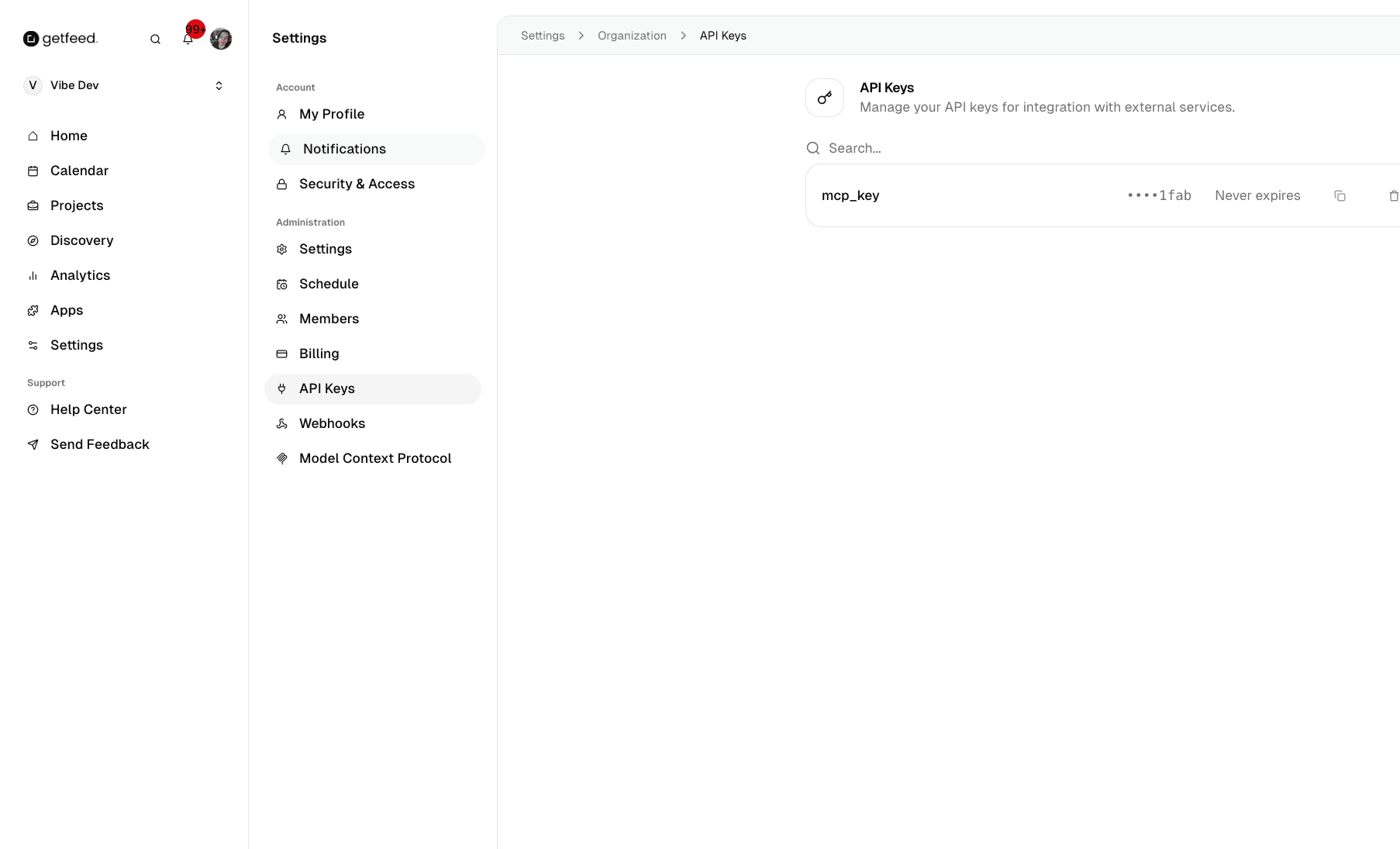
In the Settings sidebar, under Administration, click API Keys.
Creating an API Key
Click Create API Key
In the top-right corner of the API Keys page, click the "Create API Key" button.
Configure the Key
Enter a descriptive name for your API key that identifies its purpose:
mcp_key- For Model Context Protocol integrationszapier_automation- For Zapier workflowscustom_app- For your custom application
Copy and Store Securely
Once created, the full API key is displayed only once. Copy it immediately and store it in a secure location like a password manager or environment variables.
Important
Managing Existing Keys
Your API keys are displayed in a searchable list showing:
| Field | Description |
|---|---|
| Name | The descriptive name you assigned |
| Key Preview | Masked key showing last 4 characters (e.g., ••••1fab) |
| Expiration | When the key expires (or "Never expires") |
| Actions | Copy, edit, or delete the key |
Searching Keys
Use the search bar to filter keys by name when you have multiple integrations.
Deleting Keys
Click the menu button (three dots) on any key row and select Delete to revoke access. This action:
- Takes effect immediately
- Cannot be undone
- Breaks any integrations using that key
Common Use Cases
Model Context Protocol (MCP)
API keys power the MCP integration that connects GetFeed to AI assistants like ChatGPT and Claude. When you set up MCP, an API key is automatically created named mcp_key.
To learn more about connecting AI assistants, see Connect AI Assistants with MCP.
Webhook Authentication
Use API keys to authenticate incoming webhook requests from external services, ensuring only authorized systems can trigger events in your workspace.
Custom Integrations
Build custom applications that interact with GetFeed's API using your API keys for authentication.
Security Best Practices
Troubleshooting
Related Features
- Connect AI Assistants with MCP - Use API keys with ChatGPT, Claude, and developer tools
- Managing Webhooks - Configure real-time event notifications
Read More